

WP Rocket review 2026: is the WordPress caching plugin worth it?
WP Rocket is the WordPress caching plugin we install most often on client sites, because it makes a site faster without needing a developer to configure it. In this review we explain what it does, walk through the settings we use, and cover pricing, so you can decide if it is worth it for your site.
Some links in this article are affiliate links. If you buy through them we may earn a commission, at no extra cost to you. We only recommend tools we would use on client sites.
- WP Rocket applies most speed best practices the moment you activate it, with no coding.
- Its biggest wins come from caching, preloading, delaying JavaScript and removing unused CSS.
- Rocket Insights, its built-in performance monitor, is included in every licence.
- It costs from $59 a year for one site, with a 14-day money-back guarantee and no free version.
- It cannot fix slow hosting, and it should not run alongside another caching plugin.
What is WP Rocket?
What WP Rocket does
WP Rocket is a premium performance plugin for WordPress. It saves finished copies of your pages so the server does not rebuild them for every visitor, and it trims and reorders the files each page loads. The result is pages that appear and respond faster.
Speed is not just a score. Faster pages keep more visitors on the site, help pages perform better in Google, and make it more likely that someone fills in a form or completes a purchase. A slow checkout or a contact page that takes four seconds to respond quietly costs you enquiries.
How WP Rocket works
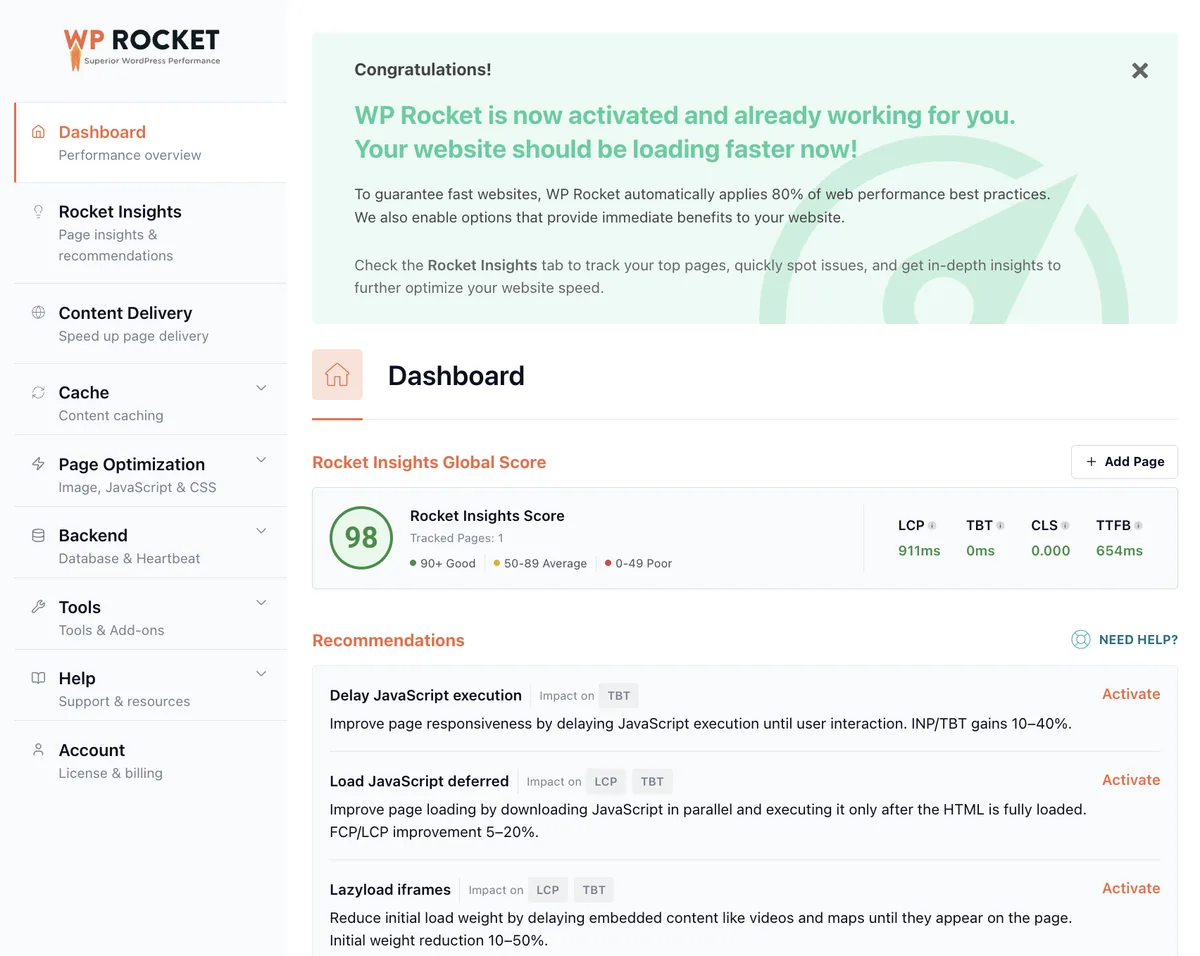
WP Rocket works in two layers. The first switches on automatically when you activate it: page caching, browser caching, GZIP compression, minified CSS and JavaScript, and optimisation of the images that appear first on screen. WP Rocket says this covers about 80% of web performance best practices.
The second layer is a set of options you turn on with a checkbox, such as delaying JavaScript, removing unused CSS and lazy loading. We cover each one, and the setting we use, in the settings section below.
Why you should use WP Rocket
Google PageSpeed and Core Web Vitals
WP Rocket is built to improve the metrics Google uses to judge page experience: Largest Contentful Paint (how quickly the main content appears), Interaction to Next Paint (how quickly the page reacts) and Cumulative Layout Shift (how much the layout jumps). These are the Core Web Vitals, and PageSpeed Insights reports them for mobile and desktop.
WooCommerce shops
WP Rocket is a good fit for WooCommerce. It automatically keeps the cart, checkout and account pages out of the cache, so customers never see someone else's basket, while product and category pages are cached and served quickly. On a shop, the gain from delaying JavaScript is often large, because shops tend to load many scripts for reviews, chat, tracking and payments.
Five more reasons it is worth the money
- Powerful features in one plugin: caching, preloading, file optimisation, lazy loading, database clean-up and CDN support, so you need fewer plugins.
- Easy to use: the main gains need no configuration, and every option has a plain explanation and a link to documentation.
- Compatibility: it works with the common hosts, themes, page builders and WooCommerce, and it includes one-click exclusions for plugins that need them. On some managed hosts with their own server caching, it adapts and keeps the rest of its optimisations.
- Monitoring and AI tools included: Rocket Insights tracks up to 10 key pages per site and recommends what to switch on next, and since version 3.23 every licence includes an MCP connection, so AI assistants such as Claude can read your performance data and suggest or apply changes with your approval.
- Support and reputation: it is one of the most used WordPress performance plugins, WP Rocket says it runs on more than 4 million websites, and support is handled by its own team.
How to use WP Rocket (and the best settings)
WP Rocket's best settings depend on your theme and plugins, so the rule is simple: switch on one option, check the site, then move to the next. Our step-by-step WP Rocket setup guide covers every screen. Here are the features that matter most.
Remove unused CSS
Most themes load one large stylesheet for the whole site. Remove unused CSS keeps only the styles each page actually uses. It addresses the PageSpeed audits "Reduce unused CSS" and "Eliminate render-blocking resources". It is processed on WP Rocket's servers, so the first visits after switching it on may not yet be optimised. Our setting: on, then check menus, sliders and pop-ups.
Load JavaScript deferred
Deferring tells the browser to download scripts in parallel and run them only after the page HTML has loaded. It addresses "Eliminate render-blocking resources" and usually improves Largest Contentful Paint. Our setting: on for almost every site.
Delay JavaScript execution
Delaying waits until the visitor scrolls, taps or moves the mouse before running non-essential scripts such as chat widgets, analytics and social embeds. It addresses "Reduce JavaScript execution time", "Minimize main-thread work" and Total Blocking Time, and it is often the single biggest gain. Our setting: on, using the one-click exclusions for your cookie banner, sliders and anything that must work immediately.

CSS and JavaScript minification
Minification removes spaces and comments to make files smaller. It addresses "Minify CSS" and "Minify JavaScript". Since version 3.18 it is switched on automatically for new customers. Our setting: on. We leave "combine files" off on modern hosting with HTTP/2, as WP Rocket also recommends.
Lazy load
Lazy loading waits to load images, iframes and videos until they are about to appear on screen. It addresses "Defer offscreen images" and reduces the initial page weight. Our setting: on for images, iframes and videos, with the YouTube preview image option on.
Self-host Google Fonts
Instead of loading fonts from Google's servers, WP Rocket can save them on your own server. That removes extra connections to another domain and helps with privacy rules in Europe. Our setting: on.
Preload
Preloading builds the cache in advance from your sitemap, so the first visitor to a page gets the fast version too. Link preloading starts loading a page when a visitor hovers over a link. It helps time to first byte and the perceived speed of the whole site. Our setting: both on.
Automatic features: Optimize Critical Images and Automatic Lazy Rendering
Two features run on their own. Optimize Critical Images finds the main image at the top of each page, loads it first and keeps it out of lazy loading, which helps Largest Contentful Paint. Automatic Lazy Rendering postpones drawing the parts of a long page that are far below the screen, which speeds up rendering. WP Rocket says it was the first plugin to offer both. There is nothing to configure.
Add-ons: Imagify and RocketCDN
WP Rocket does not compress images itself. Imagify, from the same company, compresses images and converts them to WebP or AVIF, and it connects from the WP Rocket screen. RocketCDN is WP Rocket's content delivery network, which serves your files from locations close to your visitors. It can be used without WP Rocket, but it is offered inside the plugin at a lower price. If you already use Cloudflare, you may not need it.
Pricing
WP Rocket is a paid plugin with no free version and no free trial. Every licence includes all features, one year of updates and support, and Rocket Insights. At the time of writing, the regular prices are:
| Licence | Websites | Price per year |
|---|---|---|
| Single | 1 | $59 |
| Plus | 3 | $119 |
| Multi | 50, 100 or 500 | From $299 |
Prices are shown in euros in Europe, and WP Rocket runs regular sales, so check the current price before you buy. There is a 14-day money-back guarantee, and you can upgrade later by paying only the difference.
Questions people ask
Is WP Rocket worth it?
For most business sites and shops on decent hosting, yes. It replaces several plugins, needs little technical knowledge and usually gives a clear improvement on mobile. If your host already provides strong server caching and you are comfortable configuring free tools, you may get similar results without it.
Can I switch to WP Rocket from another caching plugin?
Yes. Deactivate and delete the old caching plugin first, and make sure it has removed its settings from your server, then install WP Rocket. Never run two caching plugins at once.
Does WP Rocket work with WooCommerce?
Yes. It excludes cart, checkout and account pages from the cache automatically, and it works with the common WooCommerce extensions.
Is WP Rocket a one-time purchase?
No. It is a yearly licence. If you do not renew, the plugin keeps working, but you stop receiving updates and support.
How long does it take to work?
Caching starts the moment you activate it. Preloading the whole site and processing Remove unused CSS can take from a few minutes to a few hours, depending on the number of pages. Google's real-user data in Search Console takes about 28 days to reflect the change.
Do I still need good hosting?
Yes. WP Rocket makes a good server faster, but it cannot fix an overloaded one. Our article on hosting mistakes that slow down your website explains how to tell.
Wrapping up
WP Rocket is the easiest way we know to make a WordPress site properly fast without hiring a developer. Most of the work happens on activation, the remaining options are clear, and Rocket Insights shows you whether each change helped. Pair it with good hosting and an image optimiser, test one change at a time, and many sites reach a PageSpeed score of 90 or more on mobile.
Comparing options? Read WP Rocket vs Perfmatters vs FlyingPress, or our guide to WordPress speed plugins. If you would rather not do it yourself, speed tuning is part of our website management plans.